
Features / Vendor-Default Account Scanner
Catch Default and Admin-Style Accounts Before Attackers Do
Automatically scan every account for default usernames, predictable logins, and unchanged display names. The Vendor-Default Account Scanner surfaces the leftover, attacker-targeted accounts that slip through site handovers and staging clones.
- Detect default, domain-matching, and placeholder usernames, plus your own custom banned logins
- Flag display names left identical to the login, ranked by each account’s privilege level
- Review, dismiss, or re-flag every finding from a dashboard widget, settings tab, and Site Health
You’re fully covered by our 30-day risk-free money-back guarantee.
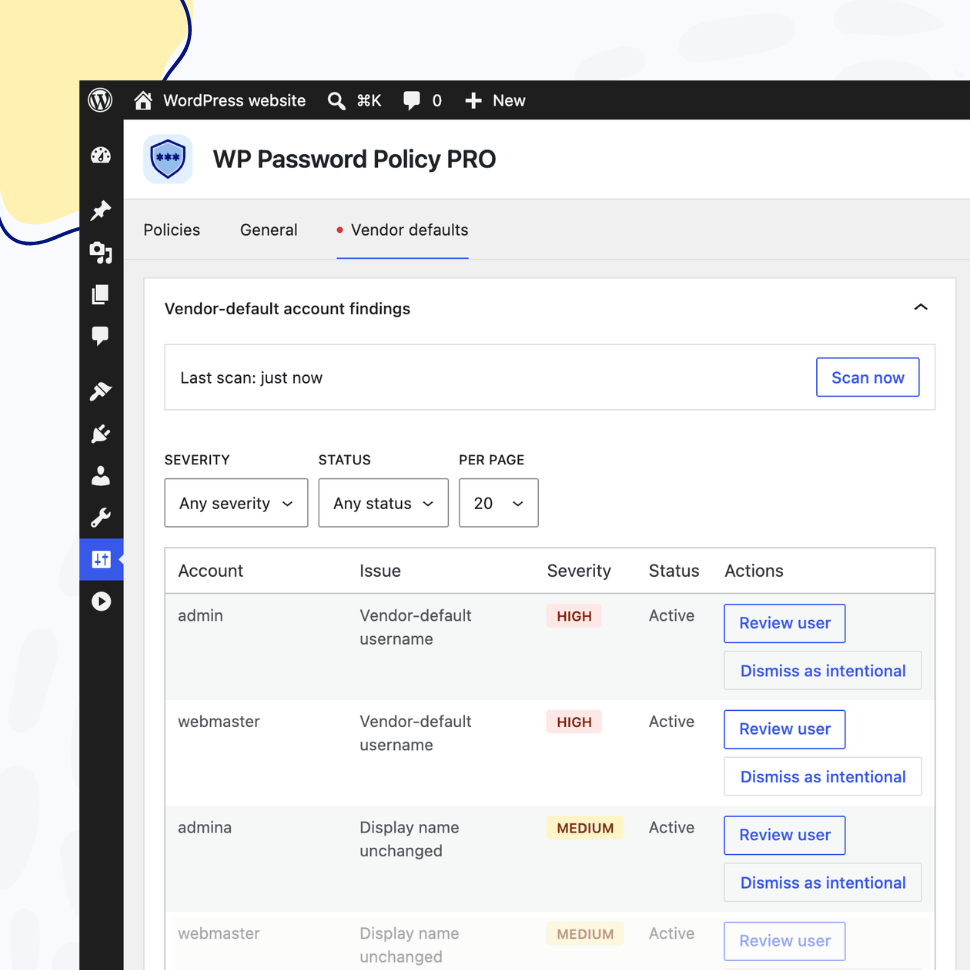
| Signal | What it flags | Example |
|---|---|---|
| Vendor-default username | Login matches a known default (case-insensitive) | admin, administrator, root, test, wordpress, webmaster, support |
| Domain-match username | Login equals your site’s domain label | example on example.com |
| Generic placeholder | Login matches user, user1, user2, and so on | user, user1, etc. |
| Unchanged display name | Public display name still equals the login | login and display name both editor1 |
Account Detection
Spot the Logins Attackers Try First
The scanner runs read-only checks against every account and flags four telltale patterns: vendor-default usernames, a username that matches your site’s own domain, generic placeholders, and a display name left identical to the login.
Need to catch organization-specific logins too? Extend the built-in list with your own banned usernames (former tenant names, agency accounts, or integration service users) straight from the plugin settings.
Risk Prioritization
Know Which Accounts Actually Matter
Not every flagged account carries the same risk. Each finding is scored High, Medium, or Low based on the account’s role, so you fix the dangerous accounts first instead of drowning in noise.
Findings surface everywhere you already look: a dashboard widget, a dedicated “Vendor defaults” settings tab that flags unacknowledged high-severity issues, WordPress Site Health, and an admin notice.
| Account role | Default / domain-match username | Placeholder / unchanged display name |
|---|---|---|
| Administrator (or network super admin) | High | Medium |
| Other roles | Medium | Low |
| Subscriber only / no role | Low | Low |
Safe by Design
Detection Without Touching Your Users
The scanner is strictly read-only. It inspects only the username, display name, and role of each account. It never reads or changes password hashes, never edits user records, and never deletes anyone.
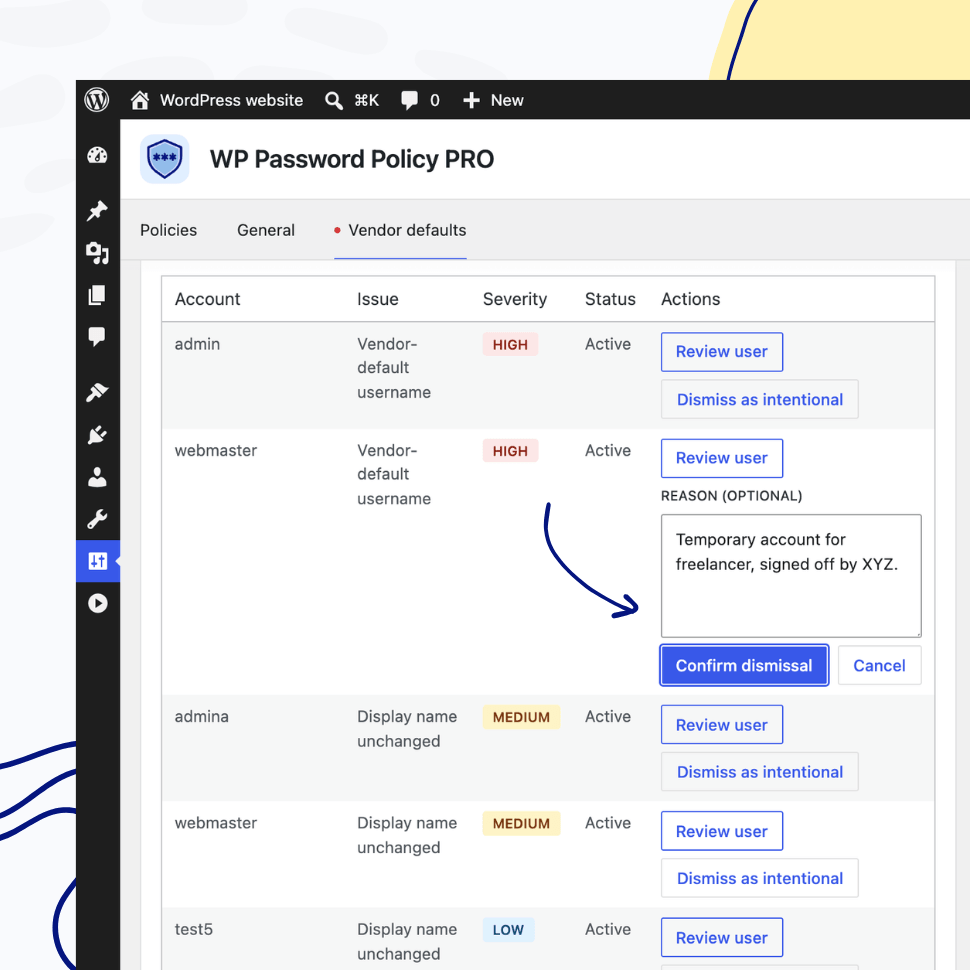
When a flagged account is intentional, dismiss the finding with a reason so it stops nagging you, and re-flag it whenever you want. A full sweep runs every week, and each account is re-checked the moment it is created, edited, or has its role changed. On multisite, it covers your entire network.
Why Default and Admin-Style Accounts Put Your Site at Risk
Most WordPress sites accumulate accounts over their lifetime: through migrations, agency builds, staging environments, and quick installs. Many of those accounts keep their original, predictable usernames and untouched display names long after anyone remembers they exist.
Attackers know this, which is why weak credentials and predictable accounts remain a leading cause of identification and authentication failures in the OWASP Top 10. Finding and cleaning up these accounts is one of the highest-value, lowest-effort security wins available to any site owner.
Where Risky Accounts Come From
1. Site Handovers: When a site changes hands between agencies, freelancers, or owners, setup accounts created during the build are routinely left behind with their original credentials.
2. Staging and Clone Environments: Cloning production to staging (and back) copies every account along with it, multiplying the number of forgotten logins across environments.
3. Quick Installs and Inherited Sites: One-click installers and inherited projects frequently ship with a generic admin account that no one ever renames.
4. Over-Privileged Leftovers: Temporary accounts granted administrator access “just for now” often keep those privileges indefinitely, widening the attack surface.
How to Reduce the Risk
1. Rename or Remove Default Usernames: Replace predictable logins like admin, administrator, root, test, wordpress, webmaster, and support with unique usernames that are not trivial to guess, a step WordPress’s own hardening guidance recommends.
2. Set a Display Name That Differs From the Login: Make sure each user’s public display name never reveals their actual username.
3. Audit Accounts After Every Handover or Migration: Treat each site transfer or staging refresh as a trigger to re-scan for accounts that should no longer exist.
4. Remove Unused Accounts and Right-Size Roles: Delete logins nobody uses and downgrade any account holding more privileges than its owner needs.
5. Layer Account Hygiene With Strong Password Policies: Cleaning up risky accounts works best alongside breach detection and weak-password screening. Combine it with the Pwned Passwords Integration and the Restricted Passwords List for defense in depth.
The Vendor-Default Account Scanner runs recurring checks, ranks every finding by the affected account’s privilege, and surfaces results in a dashboard widget, a dedicated settings tab, and WordPress Site Health. Account hygiene becomes an ongoing, visible part of your security posture instead of a one-time cleanup you forget about.
Paired with the rest of WP Password Policy, it closes one of the most commonly overlooked gaps in WordPress security: the accounts that were never supposed to still be there.
FAQ
Find Answers to Common Questions
What does the Vendor-Default Account Scanner check for?
It flags four account patterns: vendor-default usernames (admin, administrator, root, test, wordpress, webmaster, support), usernames that match your site’s own domain, generic placeholders such as user or user1, and display names left identical to the login. You can extend the username list with your own banned logins.
Does the scanner change or delete any user accounts?
No. The scanner is strictly read-only. It inspects only the username, display name, and role of each account. It never reads or changes password hashes, never edits user records, and never deletes accounts.
How does it decide which findings are most urgent?
Each finding is scored High, Medium, or Low based on the affected account’s role. A default username on an administrator is High, while the same pattern on a subscriber is Low, so you can fix the highest-risk accounts first.
How often does the scanner run?
A full sweep runs every week, and each account is re-checked the moment it is created, edited, or has its role changed. On a multisite network, the scan covers every account across the network.
Features
Explore These Powerful Features Next
Discover the features offered by the WP Password Policy plugin for WordPress.
Vendor-Default Account Scanner
Automatically scan your site for default or admin-style usernames and unchanged display names, then review and fix the risky accounts attackers target first.
Pwned Passwords Integration
Screen every password against the Have I Been Pwned database of breached credentials, blocking passwords already exposed in known data breaches.
Password Complexity Enforcement
Ensure user passwords include uppercase and lowercase letters, digits, special characters, and unique (non-repeated) characters – while limiting consecutive symbols from the user’s name.
Dedicated Policies by User and/or Role
Apply password policies to specific users by username or user role. Create dedicated password policies for vendors, freelancers, or users with higher permissions – giving you complete control over your security settings.
Customizable Password Policy Rules
Easily tailor password policy rules to meet your organization’s security needs. Enable or disable specific rules and adjust all settings with flexibility.
Healthy Passwords Retention
Ensure your website’s security by defining clear password retention rules, reducing the risk of compromised accounts.
Restricted Passwords List
Ensure users avoid weak passwords such as “admin,” “password,” or “johnny123.” Use the predefined list provided by this plugin and freely adjust it to meet your specific needs.
AI Integration
Connect your WordPress site to AI assistants like Claude, ChatGPT, or any MCP-compatible tool and manage your password policies through simple, conversational commands.
Easy Setup & Configuration
Set up password policies in just a few clicks – no complex configurations required. With preconfigured defaults, you’re ready to go in minutes.
Passwords Reuse Prevention
This feature prevents users from reusing previous passwords, requiring them to create a completely new one instead of relying on their favorite.